Set up Site Access readers and cards
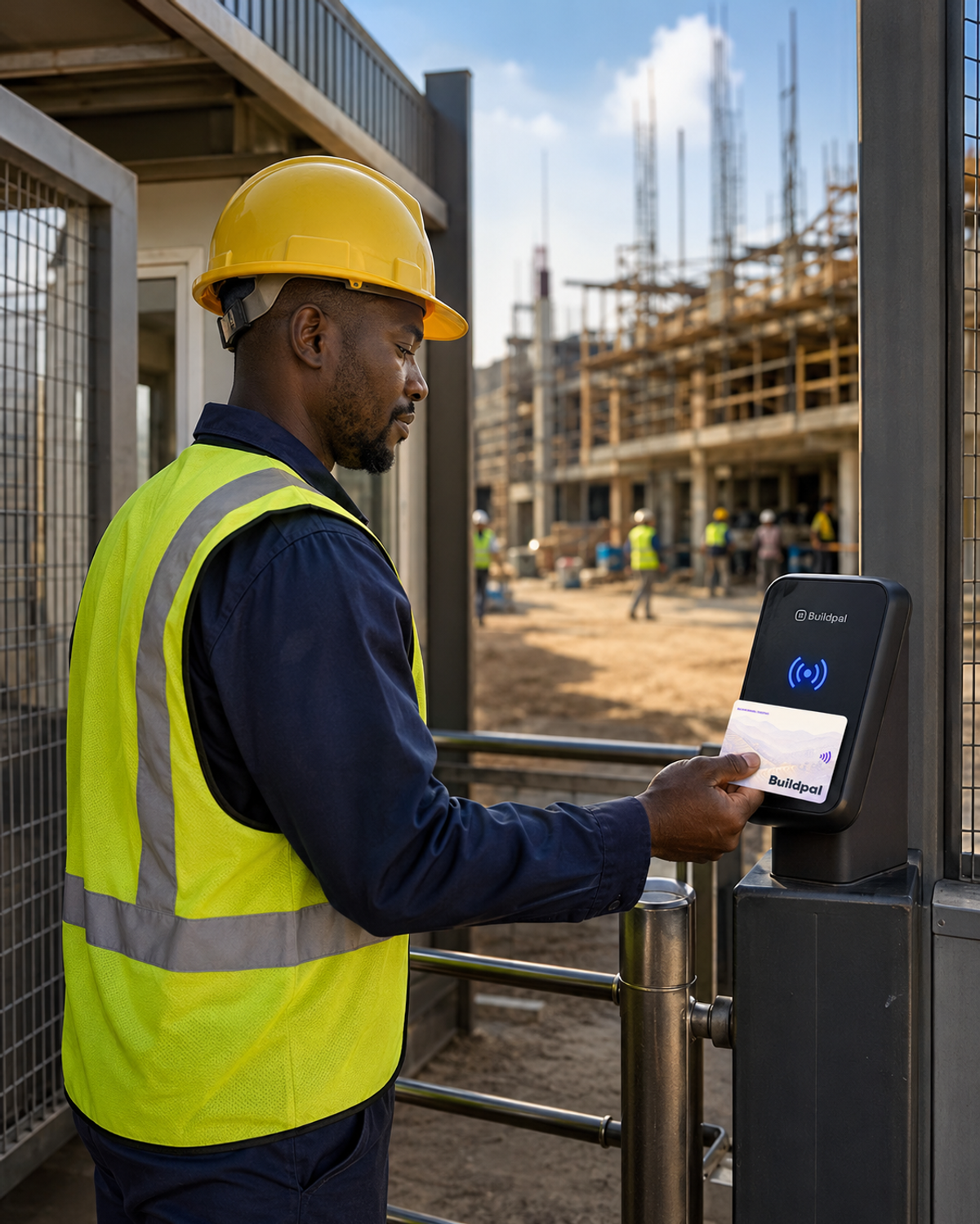
Put a reader at the gate, link it to your site, and workers check in and out with a tap of their card. No phones or paper at the gate.

- Site Access readers
- Worker cards
Site Access turns the gate into your attendance record. Each worker has one card, registered to them, and a tap at the reader records who came in, when and where.
Choose the gate
Pick the entrance every worker passes through, at a spot where people naturally stop.
Mount and power the reader
Fix the reader in place and connect it to power, following the instructions that come with it.
Link the reader to the site
Assign the reader to the site in Buildpal, so every tap it records lands on the right site's attendance.
Check the reader's status
Readers report their own status: working, degraded or down. Make sure it shows as working before the first shift.
Workers tap in at the gate
Each worker taps their card when they arrive and when they leave. The reader shows on the spot whether the tap was accepted, and why not if it wasn't.
Read the day's attendance
The day's taps appear on the site's attendance as they happen. That record is what workers' pay is calculated from.
Was this guide helpful?